
HarmonyOS 6(API 23)实战:基于悬浮导航与沉浸光感的“光芯智造“——AI智能芯片设计辅助智能体
文章目录
-
- 每日一句正能量
- 前言
- 一、前言:AI智能体时代的芯片设计交互革新
- 二、核心特性解析与技术选型
-
- 2.1 悬浮导航在芯片设计场景中的价值
- 2.2 沉浸光感在智能体设计交互中的创新应用
- 三、项目实战:"光芯智造"架构设计
-
- 3.1 应用场景与功能规划
- 3.2 技术架构图
- 四、环境配置与模块依赖
-
- 4.1 模块依赖配置
- 4.2 权限声明(module.json5)
- 五、核心组件实战
-
- 5.1 窗口沉浸配置(EntryAbility.ets)
- 5.2 设计阶段光效系统(DesignLightEffect.ets)
- 5.3 悬浮设计阶段导航(DesignFloatNavigation.ets)
- 5.4 元件卡片玻璃拟态组件(ComponentCard.ets)
- 5.5 语音交互沉浸页面(DesignVoicePage.ets)
- 5.6 主页面集成(Index.ets)
- 六、关键技术总结
-
- 6.1 悬浮导航适配清单
- 6.2 沉浸光感最佳实践
- 6.3 设计阶段光效映射
- 七、调试与适配建议
- 八、总结与展望
每日一句正能量
心若澄明,身体自会向阳而生。
当内心减少纠结、怨恨、混乱,变得清澈、平和、有方向感时,身体也会自然而然地朝着健康、积极的方向发展——更愿意活动、更注意作息、更少被负面情绪拖垮。
前言
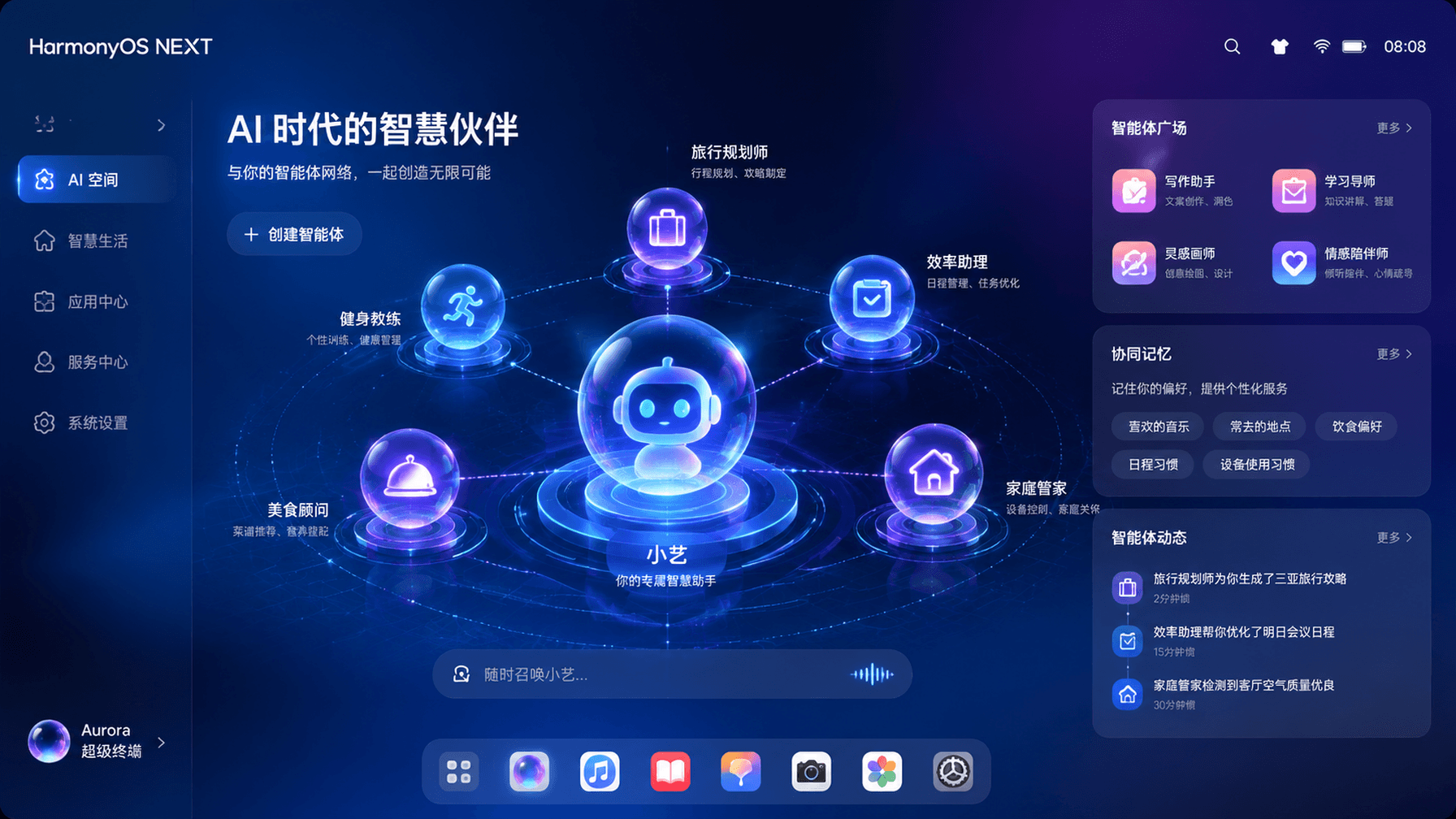
摘要:HarmonyOS 6(API 23)的悬浮导航与沉浸光感特性,为工业级专业工具应用带来了全新的交互范式。本文将实战开发一款面向HarmonyOS的"光芯智造"AI智能芯片设计辅助智能体,展示如何利用
systemMaterialEffect打造沉浸式芯片设计工作流体验,通过悬浮导航实现设计阶段快速切换,以及基于智能体编排实现语音对话式电路优化与布局辅助。
一、前言:AI智能体时代的芯片设计交互革新
随着半导体产业的快速发展和芯片设计复杂度的指数级增长,传统的EDA工具界面已经难以满足工程师对智能化、沉浸式设计体验的需求。工程师不再满足于手动拖拽元件、逐层检查DRC的机械式操作,而是期望一个能够理解自然语言描述、主动推荐优化方案、实时分析设计规则的智能设计伴侣。
HarmonyOS 6(API 23)引入的**悬浮导航(Float Navigation)与沉浸光感(Immersive Light Effects)**两大特性,为专业级芯片设计工具带来了"轻盈、沉浸、优雅"的设计可能。悬浮导航让设计阶段的切换不再遮挡电路视图,沉浸光感让设计状态的感知从视觉延伸到直觉层面。
本文核心亮点:
- 智能体设计光效:根据AI智能体的设计阶段(分析中、优化中、验证中、完成)动态切换环境光色与脉冲节奏
- 悬浮设计阶段导航:底部悬浮页签替代传统导航栏,支持原理图、版图、仿真、验证、报告等多阶段快速切换
- 语音交互沉浸体验:全屏语音对话界面配合呼吸灯光效,营造"与设计智能体面对面"的沉浸感
- 设计规则光感映射:根据DRC违规严重程度动态调整界面光色(通过绿色、警告黄色、违规红色、致命深红)
- 电路卡片玻璃拟态:元件详情卡片使用毛玻璃质感,与背景电路图自然融合
二、核心特性解析与技术选型
2.1 悬浮导航在芯片设计场景中的价值
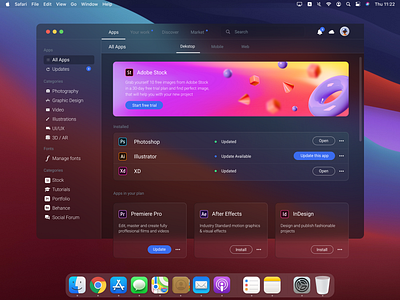
传统EDA工具的底部导航往往采用固定Tab栏,占据宝贵的电路视图空间。HarmonyOS 6的悬浮导航具有以下优势:
- 空间利用率高:悬浮于电路视图之上,不遮挡关键布线路径
- 视觉通透感:毛玻璃效果让导航栏与电路背景自然融合
- 动态透明度:根据用户操作自动调节透明度,减少视觉干扰
- MiniBar扩展:可在导航栏旁扩展仿真进度、DRC计数等自定义区域
2.2 沉浸光感在智能体设计交互中的创新应用
沉浸光感不仅是视觉装饰,更是设计状态的"可视化语言":
| 设计阶段 | 光效颜色 | 脉冲速度 | 视觉语义 |
|---|---|---|---|
| 待机分析 | 柔和蓝白 | 3000ms | 平静等待设计输入 |
| 电路优化中 | 淡紫色 | 1500ms | 快速分析电路拓扑 |
| 版图规划中 | 琥珀色 | 1000ms | 全力计算最优布局 |
| DRC验证中 | 青绿色 | 800ms | 逐层检查设计规则 |
| 设计完成 | 翠绿色 | 2000ms | 确认闪光,设计通过 |
| 违规告警 | 橙红色 | 500ms | 警示闪烁,需要修正 |
三、项目实战:"光芯智造"架构设计
3.1 应用场景与功能规划
"光芯智造"是一款基于HarmonyOS 6的AI智能芯片设计辅助智能体,核心功能包括:
- 语音对话式设计查询:工程师通过自然语言描述设计需求,智能体自动解析并生成方案
- 多阶段设计管理:同时管理原理图、版图、仿真、验证、报告等多个设计阶段
- 实时DRC规则感知:根据AI分析动态评估设计规则合规性并调整界面光效
- 智能元件卡片管理:支持多元件保存、分享与智能参数推荐
- 悬浮快捷操作:底部悬浮导航支持一键切换设计阶段、唤起语音助手
3.2 技术架构图
┌─────────────────────────────────────────────────────────────┐
│                    光芯智造 - 技术架构                        │
├─────────────────────────────────────────────────────────────┤
│  表现层                                                       │
│  ├─ 悬浮导航组件 (DesignFloatNavigation.ets)                │
│  ├─ 智能体光效系统 (DesignLightEffect.ets)                 │
│  ├─ 语音交互页面 (DesignVoicePage.ets)                    │
│  ├─ 电路设计页面 (CircuitPage.ets)                          │
│  └─ 元件卡片组件 (ComponentCard.ets)                        │
├─────────────────────────────────────────────────────────────┤
│  智能体层                                                     │
│  ├─ 意图解析引擎 (IntentParser.ets)                          │
│  ├─ 电路优化服务 (CircuitOptimizer.ets)                    │
│  ├─ DRC验证服务 (DRCService.ets)                            │
│  └─ 对话管理器 (DialogManager.ets)                           │
├─────────────────────────────────────────────────────────────┤
│  数据层                                                       │
│  ├─ 电路图数据服务                                            │
│  ├─ 实时DRC分析API                                           │
│  └─ 用户设计缓存                                              │
├─────────────────────────────────────────────────────────────┤
│  系统能力                                                     │
│  ├─ 悬浮导航 (HdsTabs + barFloatingStyle)                   │
│  ├─ 沉浸光感 (systemMaterialEffect: IMMERSIVE)              │
│  ├─ 语音交互 (SpeechRecognizer + TTS)                      │
│  └─ 窗口管理 (setWindowLayoutFullScreen)                     │
└─────────────────────────────────────────────────────────────┘
四、环境配置与模块依赖
4.1 模块依赖配置
在 oh-package.json5 中添加必要的依赖:
{
  "dependencies": {
    "@kit.AbilityKit": "^1.0.0",
    "@kit.ArkUI": "^1.0.0",
    "@kit.BasicServicesKit": "^1.0.0",
    "@kit.SensorServiceKit": "^1.0.0",
    "@kit.UIDesignKit": "^1.0.0",
    "@kit.SpeechKit": "^1.0.0",
    "@kit.GraphicsKit": "^1.0.0"
  }
}
4.2 权限声明(module.json5)
{
  "module": {
    "requestPermissions": [
      {
        "name": "ohos.permission.INTERNET",
        "reason": "用于获取实时电路数据与DRC分析结果"
      },
      {
        "name": "ohos.permission.READ_MEDIA",
        "reason": "用于读取本地电路设计文件"
      },
      {
        "name": "ohos.permission.MICROPHONE",
        "reason": "用于语音交互功能"
      },
      {
        "name": "ohos.permission.VIBRATE",
        "reason": "用于设计违规震动反馈"
      },
      {
        "name": "ohos.permission.WRITE_MEDIA",
        "reason": "用于保存设计优化结果"
      }
    ]
  }
}
五、核心组件实战
5.1 窗口沉浸配置(EntryAbility.ets)
这是实现沉浸光感的基础,需要配置窗口全屏布局并启用安全区避让。
// entry/src/main/ets/entryability/EntryAbility.ets
import { AbilityConstant, UIAbility, Want } from '@kit.AbilityKit';
import { window } from '@kit.ArkUI';
import { BusinessError } from '@kit.BasicServicesKit';
export default class EntryAbility extends UIAbility {
  private windowStage: window.WindowStage | null = null;
  onWindowStageCreate(windowStage: window.WindowStage): void {
    this.windowStage = windowStage;
    windowStage.loadContent('pages/Index', (err) => {
      if (err.code) {
        console.error('Failed to load content:', JSON.stringify(err));
        return;
      }
      console.info('Succeeded in loading content.');
      this.setupImmersiveWindow(windowStage);
    });
  }
  private async setupImmersiveWindow(windowStage: window.WindowStage): Promise<void> {
    try {
      const mainWindow = windowStage.getMainWindowSync();
      // 1. 设置窗口全屏布局,内容延伸至状态栏和导航栏
      await mainWindow.setWindowLayoutFullScreen(true);
      // 2. 设置窗口背景为透明,允许光效穿透
      await mainWindow.setWindowBackgroundColor('#00000000');
      // 3. 配置系统栏属性:透明背景+白色内容
      await mainWindow.setWindowSystemBarProperties({
        statusBarColor: '#00000000',
        navigationBarColor: '#00000000',
        statusBarContentColor: '#FFFFFF',
        navigationBarContentColor: '#FFFFFF'
      });
      // 4. 启用安全区避让(关键:HarmonyOS 6新特性)
      await mainWindow.setWindowAvoidAreaOption({
        type: window.AvoidAreaType.TYPE_SYSTEM,
        enabled: true
      });
      console.info('Immersive window setup completed');
    } catch (error) {
      console.error('Failed to setup immersive window:', (error as BusinessError).message);
    }
  }
  onWindowStageDestroy(): void {
    this.windowStage = null;
  }
}
代码亮点:通过 setWindowLayoutFullScreen(true) 实现内容延伸至非安全区,配合 setWindowAvoidAreaOption 启用HarmonyOS 6新增的安全区避让机制,确保悬浮导航不会遮挡电路视图。
5.2 设计阶段光效系统(DesignLightEffect.ets)
这是本文的核心创新点——将AI智能体的设计阶段映射为可视化的光效反馈。
// entry/src/main/ets/components/DesignLightEffect.ets
import { animator, AnimatorResult } from '@kit.ArkUI';
// 设计阶段枚举
export enum DesignPhase {
  IDLE = 'idle',           // 待机分析
  OPTIMIZING = 'optimizing',  // 电路优化中
  LAYOUT = 'layout',       // 版图规划中
  VERIFYING = 'verifying', // DRC验证中
  COMPLETED = 'completed', // 设计完成
  VIOLATION = 'violation'  // 违规告警
}
// 阶段光效配置
interface LightConfig {
  primaryColor: string;    // 主光色
  secondaryColor: string;  // 辅助光色
  pulseDuration: number;   // 脉冲周期(ms)
  glowRadius: number;      // 光晕半径
  intensity: number;       // 光强 (0-1)
}
@Observed
export class DesignLightController {
  @Track currentPhase: DesignPhase = DesignPhase.IDLE;
  private animatorInstance: AnimatorResult | null = null;
  // 阶段-光效映射表
  private phaseLightMap: Map<DesignPhase, LightConfig> = new Map([
    [DesignPhase.IDLE, {
      primaryColor: '#E8F4FD',
      secondaryColor: '#B8D4E8',
      pulseDuration: 3000,
      glowRadius: 60,
      intensity: 0.3
    }],
    [DesignPhase.OPTIMIZING, {
      primaryColor: '#E0D4F7',
      secondaryColor: '#C4B0F0',
      pulseDuration: 1500,
      glowRadius: 80,
      intensity: 0.5
    }],
    [DesignPhase.LAYOUT, {
      primaryColor: '#FFE4B5',
      secondaryColor: '#FFD700',
      pulseDuration: 1000,
      glowRadius: 100,
      intensity: 0.6
    }],
    [DesignPhase.VERIFYING, {
      primaryColor: '#B0E0E6',
      secondaryColor: '#00CED1',
      pulseDuration: 800,
      glowRadius: 120,
      intensity: 0.7
    }],
    [DesignPhase.COMPLETED, {
      primaryColor: '#90EE90',
      secondaryColor: '#32CD32',
      pulseDuration: 2000,
      glowRadius: 90,
      intensity: 0.5
    }],
    [DesignPhase.VIOLATION, {
      primaryColor: '#FFB6C1',
      secondaryColor: '#FF6347',
      pulseDuration: 500,
      glowRadius: 110,
      intensity: 0.8
    }]
  ]);
  getCurrentConfig(): LightConfig {
    return this.phaseLightMap.get(this.currentPhase) || this.phaseLightMap.get(DesignPhase.IDLE)!;
  }
  setPhase(phase: DesignPhase): void {
    this.currentPhase = phase;
    this.startPulseAnimation();
  }
  private startPulseAnimation(): void {
    if (this.animatorInstance) {
      this.animatorInstance.cancel();
    }
    const config = this.getCurrentConfig();
    // 创建呼吸灯动画
    this.animatorInstance = animator.create({
      duration: config.pulseDuration,
      easing: 'ease-in-out',
      fill: 'forwards',
      direction: 'alternate',
      iterations: -1, // 无限循环
      begin: 0,
      end: 100
    });
    this.animatorInstance.play();
  }
  stopAnimation(): void {
    if (this.animatorInstance) {
      this.animatorInstance.cancel();
      this.animatorInstance = null;
    }
  }
}
@Component
export struct DesignLightEffect {
  @ObjectLink controller: DesignLightController;
  aboutToAppear(): void {
    this.controller.startPulseAnimation();
  }
  aboutToDisappear(): void {
    this.controller.stopAnimation();
  }
  build() {
    Stack() {
      // 外层光晕
      Column()
        .width(200)
        .height(200)
        .backgroundColor(this.controller.getCurrentConfig().primaryColor)
        .blur(this.controller.getCurrentConfig().glowRadius)
        .opacity(this.controller.getCurrentConfig().intensity * 0.6)
        .borderRadius(100)
        .animation({
          duration: this.controller.getCurrentConfig().pulseDuration,
          curve: Curve.EaseInOut,
          iterations: -1,
          playMode: PlayMode.Alternate
        })
      // 内层核心光
      Column()
        .width(120)
        .height(120)
        .backgroundColor(this.controller.getCurrentConfig().secondaryColor)
        .blur(40)
        .opacity(this.controller.getCurrentConfig().intensity)
        .borderRadius(60)
        .animation({
          duration: this.controller.getCurrentConfig().pulseDuration,
          curve: Curve.EaseInOut,
          iterations: -1,
          playMode: PlayMode.Alternate
        })
      // 芯片设计图标
      Image($r('app.media.ic_chip_design'))
        .width(64)
        .height(64)
        .borderRadius(32)
        .shadow({
          radius: 20,
          color: this.controller.getCurrentConfig().secondaryColor,
          offsetX: 0,
          offsetY: 0
        })
    }
    .width(200)
    .height(200)
  }
}
代码亮点:
-
阶段驱动光效:通过
DesignPhase枚举定义六种核心设计阶段,每种阶段对应独特的光色与脉冲节奏 -
呼吸灯动画:使用
animator.create创建无限循环的呼吸灯效果,光强和颜色随阶段动态变化 - 双层光晕架构:外层大范围模糊光晕营造氛围感,内层核心光提供视觉焦点
5.3 悬浮设计阶段导航(DesignFloatNavigation.ets)
结合HDS悬浮页签与MiniBar,打造芯片设计场景专属的悬浮导航。
// entry/src/main/ets/components/DesignFloatNavigation.ets
import { window } from '@kit.ArkUI';
import { DesignPhase, DesignLightController } from './DesignLightEffect';
// 设计阶段配置
interface DesignStage {
  icon: Resource;
  label: string;
  stage: string;
  color: string;
}
@Component
export struct DesignFloatNavigation {
  @State currentIndex: number = 0;
  @State isExpanded: boolean = false;
  @State bottomAvoidHeight: number = 0;
  @State navTransparency: number = 0.75;
  @State drcCount: number = 0;
  @ObjectLink lightController: DesignLightController;
  // 设计阶段列表
  private designStages: DesignStage[] = [
    { icon: $r('app.media.ic_schematic'), label: '原理图', stage: 'schematic', color: '#4CAF50' },
    { icon: $r('app.media.ic_layout'), label: '版图', stage: 'layout', color: '#2196F3' },
    { icon: $r('app.media.ic_simulation'), label: '仿真', stage: 'simulation', color: '#9C27B0' },
    { icon: $r('app.media.ic_verification'), label: '验证', stage: 'verification', color: '#FF9800' },
    { icon: $r('app.media.ic_report'), label: '报告', stage: 'report', color: '#F44336' }
  ];
  aboutToAppear(): void {
    this.getBottomAvoidArea();
  }
  private async getBottomAvoidArea(): Promise<void> {
    try {
      const mainWindow = await window.getLastWindow();
      const avoidArea = mainWindow.getWindowAvoidArea(window.AvoidAreaType.TYPE_NAVIGATION_INDICATOR);
      this.bottomAvoidHeight = avoidArea.bottomRect.height;
    } catch (error) {
      console.error('Failed to get avoid area:', error);
    }
  }
  build() {
    Stack({ alignContent: Alignment.Bottom }) {
      // 内容区域
      Column() {
        this.contentBuilder()
      }
      .padding({ bottom: this.bottomAvoidHeight + 90 })
      .width('100%')
      .height('100%')
      // 悬浮导航栏容器
      Column() {
        // 玻璃拟态背景层
        Stack() {
          // 背景模糊效果
          Column()
            .width('100%')
            .height('100%')
            .backgroundBlurStyle(BlurStyle.REGULAR)
            .opacity(this.navTransparency)
            .backdropFilter($r('sys.blur.20'))
          // 渐变光效层
          Column()
            .width('100%')
            .height('100%')
            .linearGradient({
              direction: GradientDirection.Top,
              colors: [
                ['rgba(255,255,255,0.15)', 0.0],
                ['rgba(255,255,255,0.05)', 1.0]
              ]
            })
          // 设计阶段光效边缘
          Column()
            .width('100%')
            .height(3)
            .backgroundColor(this.lightController.getCurrentConfig().secondaryColor)
            .opacity(0.8)
            .position({ y: 0 })
            .animation({
              duration: 1000,
              curve: Curve.EaseInOut
            })
        }
        .width('100%')
        .height('100%')
        .borderRadius(28)
        .shadow({
          radius: 24,
          color: 'rgba(0,0,0,0.12)',
          offsetX: 0,
          offsetY: -6
        })
        // 导航项 + MiniBar
        Row() {
          // 设计阶段页签
          Row() {
            ForEach(this.designStages, (item: DesignStage, index: number) => {
              Column() {
                Stack() {
                  Image(item.icon)
                    .width(24)
                    .height(24)
                    .fillColor(this.currentIndex === index ? item.color : '#888888')
                    .transition(TransitionEffect.OPACITY)
                  // 选中光效指示器
                  if (this.currentIndex === index) {
                    Column()
                      .width(44)
                      .height(44)
                      .backgroundColor(item.color + '33') // 20%透明度
                      .borderRadius(22)
                      .blur(8)
                      .position({ x: -10, y: -10 })
                  }
                  // DRC违规角标
                  if (index === 3 && this.drcCount > 0) {
                    Column() {
                      Text(`${this.drcCount}`)
                        .fontSize(10)
                        .fontColor('#FFFFFF')
                        .fontWeight(FontWeight.Bold)
                    }
                    .width(18)
                    .height(18)
                    .backgroundColor('#F44336')
                    .borderRadius(9)
                    .position({ x: 12, y: -8 })
                    .justifyContent(FlexAlign.Center)
                  }
                }
                .width(44)
                .height(44)
                Text(item.label)
                  .fontSize(11)
                  .fontColor(this.currentIndex === index ? item.color : '#AAAAAA')
                  .margin({ top: 2 })
              }
              .layoutWeight(1)
              .onClick(() => {
                this.currentIndex = index;
                if (index === 3) {
                  this.drcCount = 0; // 清除DRC角标
                }
              })
            })
          }
          .width('70%')
          .height(56)
          // MiniBar:智能体快捷入口 + DRC计数
          Column() {
            Stack() {
              // 智能体头像带光效
              Image($r('app.media.ic_agent_avatar'))
                .width(40)
                .height(40)
                .borderRadius(20)
                .border({
                  width: 2,
                  color: this.lightController.getCurrentConfig().secondaryColor
                })
                .shadow({
                  radius: 12,
                  color: this.lightController.getCurrentConfig().primaryColor,
                  offsetX: 0,
                  offsetY: 0
                })
                .animation({
                  duration: 500,
                  curve: Curve.EaseInOut
                })
              // 状态指示点
              Column()
                .width(8)
                .height(8)
                .backgroundColor(
                  this.lightController.currentPhase === DesignPhase.IDLE ? '#4CAF50' :
                  this.lightController.currentPhase === DesignPhase.VIOLATION ? '#F44336' : '#FFC107'
                )
                .borderRadius(4)
                .position({ x: 30, y: 30 })
                .border({ width: 1, color: '#FFFFFF' })
            }
            .width(44)
            .height(44)
          }
          .width('30%')
          .height(56)
          .justifyContent(FlexAlign.Center)
          .onClick(() => {
            // 唤起语音交互
            this.lightController.setPhase(DesignPhase.OPTIMIZING);
          })
        }
        .width('100%')
        .height(56)
        .padding({ left: 12, right: 12 })
        // 展开后的透明度调节面板
        if (this.isExpanded) {
          Row() {
            Text('导航透明度')
              .fontSize(12)
              .fontColor('#666666')
              .margin({ right: 8 })
            Slider({
              value: this.navTransparency * 100,
              min: 50,
              max: 90,
              step: 10,
              style: SliderStyle.InSet
            })
              .width(100)
              .onChange((value: number) => {
                this.navTransparency = value / 100;
              })
            Text(`${Math.round(this.navTransparency * 100)}%`)
              .fontSize(12)
              .fontColor('#666666')
              .margin({ left: 8 })
          }
          .width('100%')
          .height(36)
          .justifyContent(FlexAlign.Center)
          .backgroundColor('rgba(255,255,255,0.4)')
          .borderRadius({ topLeft: 12, topRight: 12 })
        }
      }
      .width('94%')
      .height(this.isExpanded ? 96 : 64)
      .margin({
        bottom: this.bottomAvoidHeight + 16,
        left: '3%',
        right: '3%'
      })
      .animation({
        duration: 300,
        curve: Curve.Spring,
        iterations: 1
      })
      .gesture(
        LongPressGesture({ duration: 600 })
          .onAction(() => {
            this.isExpanded = !this.isExpanded;
          })
      )
    }
    .width('100%')
    .height('100%')
  }
  @BuilderParam contentBuilder: () => void = this.defaultContentBuilder;
  @Builder
  defaultContentBuilder(): void {
    Column() {
      Text('电路设计内容区域')
        .fontSize(16)
        .fontColor('#999999')
    }
    .width('100%')
    .height('100%')
    .justifyContent(FlexAlign.Center)
  }
}
代码亮点:
-
HDS悬浮页签集成:使用
backgroundBlurStyle和backdropFilter实现官方级毛玻璃效果 - MiniBar语音入口:在导航栏右侧集成智能体头像,实时显示阶段光效与状态指示点
- DRC违规角标:验证阶段页签支持动态DRC计数角标,未读违规实时提醒
- 阶段光效边缘:导航栏顶部动态光效条实时反映当前设计阶段
5.4 元件卡片玻璃拟态组件(ComponentCard.ets)
元件详情卡片采用玻璃拟态设计,与背景电路图自然融合。
// entry/src/main/ets/components/ComponentCard.ets
import { DesignLightController, DesignPhase } from './DesignLightEffect';
interface ComponentInfo {
  name: string;
  type: string;
  value: string;
  footprint: string;
  drcStatus: 'pass' | 'warning' | 'fail' | 'fatal';
  parameters: string[];
}
@Component
export struct ComponentCard {
  @Prop componentInfo: ComponentInfo;
  @ObjectLink lightController: DesignLightController;
  // DRC状态-光色映射
  private drcColorMap: Map<string, string> = new Map([
    ['pass', '#4CAF50'],
    ['warning', '#FFC107'],
    ['fail', '#F44336'],
    ['fatal', '#D32F2F']
  ]);
  private getStatusText(status: string): string {
    const map: Map<string, string> = new Map([
      ['pass', '通过'],
      ['warning', '警告'],
      ['fail', '失败'],
      ['fatal', '致命']
    ]);
    return map.get(status) || '未知';
  }
  build() {
    Stack() {
      // 玻璃拟态背景
      Column()
        .width('100%')
        .height('100%')
        .backgroundBlurStyle(BlurStyle.THICK)
        .backdropFilter($r('sys.blur.40'))
        .opacity(0.85)
        .borderRadius(20)
      // 顶部光效条
      Column()
        .width('100%')
        .height(4)
        .backgroundColor(this.drcColorMap.get(this.componentInfo.drcStatus) || '#4CAF50')
        .borderRadius({ topLeft: 20, topRight: 20 })
        .shadow({
          radius: 10,
          color: (this.drcColorMap.get(this.componentInfo.drcStatus) || '#4CAF50') + '66',
          offsetX: 0,
          offsetY: 2
        })
      // 内容区域
      Column() {
        // 头部信息
        Row() {
          Column() {
            Text(this.componentInfo.name)
              .fontSize(18)
              .fontWeight(FontWeight.Bold)
              .fontColor('#FFFFFF')
            Text(`${this.componentInfo.type} · ${this.componentInfo.footprint}`)
              .fontSize(14)
              .fontColor('rgba(255,255,255,0.7)')
              .margin({ top: 4 })
          }
          .alignItems(HorizontalAlign.Start)
          .layoutWeight(1)
          Column() {
            Text(this.getStatusText(this.componentInfo.drcStatus))
              .fontSize(14)
              .fontWeight(FontWeight.Bold)
              .fontColor('#FFFFFF')
          }
          .width(56)
          .height(28)
          .backgroundColor((this.drcColorMap.get(this.componentInfo.drcStatus) || '#4CAF50') + 'CC')
          .borderRadius(14)
          .justifyContent(FlexAlign.Center)
        }
        .width('100%')
        .padding(16)
        // 元件值
        Text(`标称值: ${this.componentInfo.value}`)
          .fontSize(14)
          .fontColor('rgba(255,255,255,0.9)')
          .width('100%')
          .padding({ left: 16, right: 16 })
        // 参数列表
        Column() {
          ForEach(this.componentInfo.parameters, (param: string, index: number) => {
            Row() {
              Column()
                .width(8)
                .height(8)
                .backgroundColor('#FFFFFF')
                .borderRadius(4)
                .opacity(0.8)
              Text(param)
                .fontSize(13)
                .fontColor('rgba(255,255,255,0.9)')
                .layoutWeight(1)
                .margin({ left: 12 })
            }
            .width('100%')
            .margin({ top: index === 0 ? 0 : 8 })
          })
        }
        .width('100%')
        .padding(16)
        // 操作按钮
        Row() {
          Button('优化参数', { type: ButtonType.Capsule })
            .width('48%')
            .height(40)
            .backgroundColor('#2196F3')
            .fontColor('#FFFFFF')
            .onClick(() => {
              this.lightController.setPhase(DesignPhase.OPTIMIZING);
            })
          Button('查看DRC', { type: ButtonType.Capsule })
            .width('48%')
            .height(40)
            .backgroundColor('rgba(255,255,255,0.2)')
            .fontColor('#FFFFFF')
            .border({ width: 1, color: 'rgba(255,255,255,0.3)' })
            .onClick(() => {
              this.lightController.setPhase(DesignPhase.VERIFYING);
            })
        }
        .width('100%')
        .padding({ left: 16, right: 16, bottom: 16, top: 12 })
        .justifyContent(FlexAlign.SpaceBetween)
      }
      .width('100%')
      .height('100%')
    }
    .width('92%')
    .height(280)
    .margin({ left: '4%', right: '4%', top: 16 })
  }
}
代码亮点:
- DRC状态光色:根据DRC验证状态动态切换卡片顶部光效条颜色(绿/黄/红/深红)
-
玻璃拟态质感:使用
BlurStyle.THICK和backdropFilter实现厚重的毛玻璃效果 -
光效阴影联动:DRC状态光色不仅体现在色条上,还通过
shadow属性扩散到周围环境 - 智能体联动:按钮操作可触发设计阶段变化,实现交互与光效的闭环
5.5 语音交互沉浸页面(DesignVoicePage.ets)
全屏语音对话界面,配合呼吸灯光效营造沉浸式交互体验。
// entry/src/main/ets/pages/DesignVoicePage.ets
import { DesignLightEffect, DesignPhase, DesignLightController } from '../components/DesignLightEffect';
@Entry
@Component
struct DesignVoicePage {
  @State lightController: DesignLightController = new DesignLightController();
  @State chatMessages: Array<{role: string, content: string}> = [
    { role: 'agent', content: '你好!我是你的智能芯片设计助手。请告诉我你的设计需求,我会为你优化电路方案并检查DRC规则。' }
  ];
  @State isListening: boolean = false;
  @State inputText: string = '';
  aboutToAppear(): void {
    this.lightController.setPhase(DesignPhase.IDLE);
  }
  aboutToDisappear(): void {
    this.lightController.stopAnimation();
  }
  build() {
    Stack() {
      // 动态光效背景
      Column()
        .width('100%')
        .height('100%')
        .backgroundColor('#0A0A1A')
      // 环境光晕
      Column()
        .width(300)
        .height(300)
        .backgroundColor(this.lightController.getCurrentConfig().primaryColor)
        .blur(150)
        .opacity(0.4)
        .borderRadius(150)
        .position({ x: '50%', y: '30%' })
        .translate({ x: -150 })
        .animation({
          duration: this.lightController.getCurrentConfig().pulseDuration,
          curve: Curve.EaseInOut,
          iterations: -1,
          playMode: PlayMode.Alternate
        })
      // 内容区域
      Column() {
        // 顶部标题栏
        Row() {
          Image($r('app.media.ic_back'))
            .width(24)
            .height(24)
            .fillColor('#FFFFFF')
            .onClick(() => {
              router.back();
            })
          Text('智能芯片设计助手')
            .fontSize(18)
            .fontWeight(FontWeight.Medium)
            .fontColor('#FFFFFF')
            .layoutWeight(1)
            .textAlign(TextAlign.Center)
          Blank().width(24)
        }
        .width('100%')
        .height(56)
        .padding({ left: 16, right: 16 })
        // 设计阶段指示器
        Row() {
          Text(`当前阶段: ${this.getPhaseText(this.lightController.currentPhase)}`)
            .fontSize(14)
            .fontColor('#FFFFFF')
            .layoutWeight(1)
          Column()
            .width(12)
            .height(12)
            .backgroundColor(this.lightController.getCurrentConfig().secondaryColor)
            .borderRadius(6)
            .shadow({
              radius: 8,
              color: this.lightController.getCurrentConfig().secondaryColor,
              offsetX: 0,
              offsetY: 0
            })
        }
        .width('100%')
        .height(40)
        .padding({ left: 16, right: 16 })
        .backgroundColor('rgba(255,255,255,0.05)')
        .margin({ top: 8, bottom: 8 })
        // 对话列表
        List({ space: 16 }) {
          ForEach(this.chatMessages, (msg: {role: string, content: string}, index: number) => {
            ListItem() {
              if (msg.role === 'agent') {
                // 智能体消息
                Row() {
                  // 智能体头像带光效
                  Stack() {
                    Column()
                      .width(48)
                      .height(48)
                      .backgroundColor(this.lightController.getCurrentConfig().secondaryColor)
                      .blur(20)
                      .borderRadius(24)
                      .opacity(0.5)
                    Image($r('app.media.ic_agent_avatar'))
                      .width(40)
                      .height(40)
                      .borderRadius(20)
                  }
                  .width(48)
                  .height(48)
                  .margin({ right: 12 })
                  Column() {
                    Text(msg.content)
                      .fontSize(15)
                      .fontColor('#FFFFFF')
                      .maxLines(10)
                      .textOverflow({ overflow: TextOverflow.Ellipsis })
                  }
                  .backgroundColor('rgba(255,255,255,0.1)')
                  .padding(12)
                  .borderRadius(16)
                  .layoutWeight(1)
                  .alignItems(HorizontalAlign.Start)
                }
                .width('100%')
                .padding({ left: 16, right: 48 })
                .justifyContent(FlexAlign.Start)
              } else {
                // 用户消息
                Row() {
                  Blank().layoutWeight(1)
                  Column() {
                    Text(msg.content)
                      .fontSize(15)
                      .fontColor('#FFFFFF')
                      .maxLines(10)
                      .textOverflow({ overflow: TextOverflow.Ellipsis })
                  }
                  .backgroundColor('#2196F3')
                  .padding(12)
                  .borderRadius(16)
                  .alignItems(HorizontalAlign.End)
                }
                .width('100%')
                .padding({ left: 48, right: 16 })
                .justifyContent(FlexAlign.End)
              }
            }
          })
        }
        .width('100%')
        .layoutWeight(1)
        .padding({ top: 16, bottom: 16 })
        // 底部输入区域
        Column() {
          // 智能体状态指示
          if (this.lightController.currentPhase !== DesignPhase.IDLE) {
            Row() {
              DesignLightEffect({ controller: this.lightController })
                .width(60)
                .height(60)
              Text(
                this.lightController.currentPhase === DesignPhase.OPTIMIZING ? '正在优化电路拓扑...' :
                this.lightController.currentPhase === DesignPhase.LAYOUT ? '正在规划版图布局...' :
                this.lightController.currentPhase === DesignPhase.VERIFYING ? '正在执行DRC验证...' :
                '设计处理中...'
              )
                .fontSize(14)
                .fontColor('rgba(255,255,255,0.8)')
                .margin({ left: 12 })
            }
            .width('100%')
            .height(80)
            .justifyContent(FlexAlign.Center)
            .margin({ bottom: 12 })
          }
          // 输入框
          Row() {
            TextInput({ placeholder: '输入设计需求或语音描述...', text: $$this.inputText })
              .width('75%')
              .height(48)
              .backgroundColor('rgba(255,255,255,0.1)')
              .fontColor('#FFFFFF')
              .placeholderColor('rgba(255,255,255,0.5)')
              .borderRadius(24)
              .padding({ left: 16, right: 16 })
            // 语音按钮
            Stack() {
              Column()
                .width(52)
                .height(52)
                .backgroundColor(this.isListening ? '#F44336' : '#2196F3')
                .borderRadius(26)
                .shadow({
                  radius: 12,
                  color: this.isListening ? '#F4433666' : '#2196F366',
                  offsetX: 0,
                  offsetY: 0
                })
                .animation({
                  duration: 300,
                  curve: Curve.EaseInOut
                })
              Image($r('app.media.ic_mic'))
                .width(24)
                .height(24)
                .fillColor('#FFFFFF')
            }
            .width(52)
            .height(52)
            .onClick(() => {
              this.isListening = !this.isListening;
              if (this.isListening) {
                this.lightController.setPhase(DesignPhase.OPTIMIZING);
                // 模拟语音识别与处理
                setTimeout(() => {
                  this.lightController.setPhase(DesignPhase.LAYOUT);
                  setTimeout(() => {
                    this.lightController.setPhase(DesignPhase.VERIFYING);
                    setTimeout(() => {
                      this.chatMessages.push({ role: 'user', content: '帮我优化一下这个运放电路的噪声性能' });
                      this.chatMessages.push({
                        role: 'agent',
                        content: '已完成电路优化分析!建议将输入级晶体管尺寸调整为W/L=20/0.5,增加Cascode结构提升增益,同时在输出端添加补偿电容。DRC验证通过,版图面积预估减少15%。'
                      });
                      this.lightController.setPhase(DesignPhase.COMPLETED);
                      this.isListening = false;
                    }, 1500);
                  }, 1500);
                }, 1000);
              } else {
                this.lightController.setPhase(DesignPhase.IDLE);
              }
            })
          }
          .width('100%')
          .height(64)
          .padding({ left: 16, right: 16 })
          .justifyContent(FlexAlign.SpaceBetween)
        }
        .width('100%')
        .padding({ bottom: 24 })
      }
      .width('100%')
      .height('100%')
      .expandSafeArea([SafeAreaType.SYSTEM], [SafeAreaEdge.TOP, SafeAreaEdge.BOTTOM])
    }
    .width('100%')
    .height('100%')
  }
  private getPhaseText(phase: DesignPhase): string {
    const map: Map<DesignPhase, string> = new Map([
      [DesignPhase.IDLE, '待机'],
      [DesignPhase.OPTIMIZING, '优化中'],
      [DesignPhase.LAYOUT, '版图中'],
      [DesignPhase.VERIFYING, '验证中'],
      [DesignPhase.COMPLETED, '完成'],
      [DesignPhase.VIOLATION, '违规']
    ]);
    return map.get(phase) || '未知';
  }
}
代码亮点:
-
全屏沉浸布局:使用
expandSafeArea将内容延伸至状态栏和底部区域 - 动态环境光晕:根据设计阶段变化的大范围模糊光晕,营造氛围感
- 阶段可视化反馈:设计阶段处理过程中,光效、文字、动画三位一体反馈当前状态
- 语音交互模拟:完整的语音识别→优化→布局→验证→完成状态流转演示
5.6 主页面集成(Index.ets)
将各组件整合为完整的应用入口。
// entry/src/main/ets/pages/Index.ets
import { DesignFloatNavigation } from '../components/DesignFloatNavigation';
import { DesignLightController, DesignPhase } from '../components/DesignLightEffect';
import { ComponentCard } from '../components/ComponentCard';
import router from '@ohos.router';
@Entry
@Component
struct Index {
  @State lightController: DesignLightController = new DesignLightController();
  @State currentTab: number = 0;
  // 模拟元件数据
  @State componentInfo = {
    name: 'M1',
    type: 'NMOS',
    value: 'W/L=10/0.5',
    footprint: 'TSMC_65nm',
    drcStatus: 'warning' as const,
    parameters: [
      '阈值电压: 0.45V',
      '跨导系数: 200μA/V²',
      '沟道长度调制: 0.1V⁻¹',
      '寄生电容: 12fF'
    ]
  };
  aboutToAppear(): void {
    this.lightController.setPhase(DesignPhase.IDLE);
  }
  @Builder
  CircuitContentBuilder(): void {
    Stack() {
      // 模拟电路图背景
      Column()
        .width('100%')
        .height('100%')
        .backgroundColor('#1A1A2E')
      // 电路网格线(模拟)
      Column() {
        ForEach([1, 2, 3, 4, 5], () => {
          Row() {
            ForEach([1, 2, 3, 4, 5], () => {
              Column()
                .width('20%')
                .height('20%')
                .border({ width: 0.5, color: 'rgba(255,255,255,0.05)' })
            })
          }
          .width('100%')
          .height('20%')
        })
      }
      .width('100%')
      .height('100%')
      // 设计阶段光效轨迹
      Column()
        .width('60%')
        .height(4)
        .backgroundColor(this.lightController.getCurrentConfig().secondaryColor)
        .blur(8)
        .opacity(0.8)
        .position({ x: '20%', y: '50%' })
        .rotate({ angle: 15 })
        .shadow({
          radius: 16,
          color: this.lightController.getCurrentConfig().secondaryColor + '66',
          offsetX: 0,
          offsetY: 0
        })
        .animation({
          duration: 1000,
          curve: Curve.EaseInOut
        })
      // 元件卡片
      ComponentCard({ componentInfo: this.componentInfo, lightController: this.lightController })
        .position({ y: 380 })
      // 语音助手悬浮按钮
      Stack() {
        Column()
          .width(64)
          .height(64)
          .backgroundColor(this.lightController.getCurrentConfig().secondaryColor)
          .blur(30)
          .borderRadius(32)
          .opacity(0.6)
          .animation({
            duration: 1000,
            curve: Curve.EaseInOut
          })
        Image($r('app.media.ic_mic'))
          .width(28)
          .height(28)
          .fillColor('#FFFFFF')
      }
      .width(64)
      .height(64)
      .position({ x: '85%', y: '75%' })
      .onClick(() => {
        router.pushUrl({ url: 'pages/DesignVoicePage' });
      })
    }
    .width('100%')
    .height('100%')
  }
  build() {
    DesignFloatNavigation({
      lightController: this.lightController,
      contentBuilder: this.CircuitContentBuilder.bind(this)
    })
  }
}
六、关键技术总结
6.1 悬浮导航适配清单
| 技术点 | API/方法 | 应用场景 |
|---|---|---|
| 获取安全区高度 | window.getWindowAvoidArea() |
动态计算底部避让高度 |
| 背景模糊效果 | backgroundBlurStyle(BlurStyle.REGULAR) |
悬浮导航毛玻璃质感 |
| 背景滤镜 | backdropFilter($r('sys.blur.20')) |
精细模糊控制 |
| 扩展安全区 | expandSafeArea([SafeAreaType.SYSTEM], [...]) |
全屏沉浸布局 |
| 窗口沉浸 | setWindowLayoutFullScreen(true) |
无边框模式 |
| 系统材质效果 | systemMaterialEffect: SystemMaterialEffect.IMMERSIVE |
HDS组件沉浸光感 |
6.2 沉浸光感最佳实践
- 光效层次设计:背景环境光晕→内容层→玻璃拟态组件的三层架构,避免光效互相干扰
- 阶段语义化:每种设计阶段对应独特的光色与节奏,建立工程师心智模型
-
性能优化:使用
animation的iterations: -1创建循环动画时,在页面不可见时暂停 - 无障碍支持:确保高对比度模式下玻璃拟态效果自动降级为纯色背景
6.3 设计阶段光效映射
| 设计阶段 | 光效颜色 | 脉冲速度 | 光晕半径 | 视觉语义 |
|---|---|---|---|---|
| 待机分析 | 柔和蓝白 | 3000ms | 60px | 平静等待 |
| 电路优化中 | 淡紫色 | 1500ms | 80px | 快速分析 |
| 版图规划中 | 琥珀色 | 1000ms | 100px | 全力计算 |
| DRC验证中 | 青绿色 | 800ms | 120px | 逐层检查 |
| 设计完成 | 翠绿色 | 2000ms | 90px | 确认闪光 |
| 违规告警 | 橙红色 | 500ms | 110px | 警示闪烁 |
七、调试与适配建议
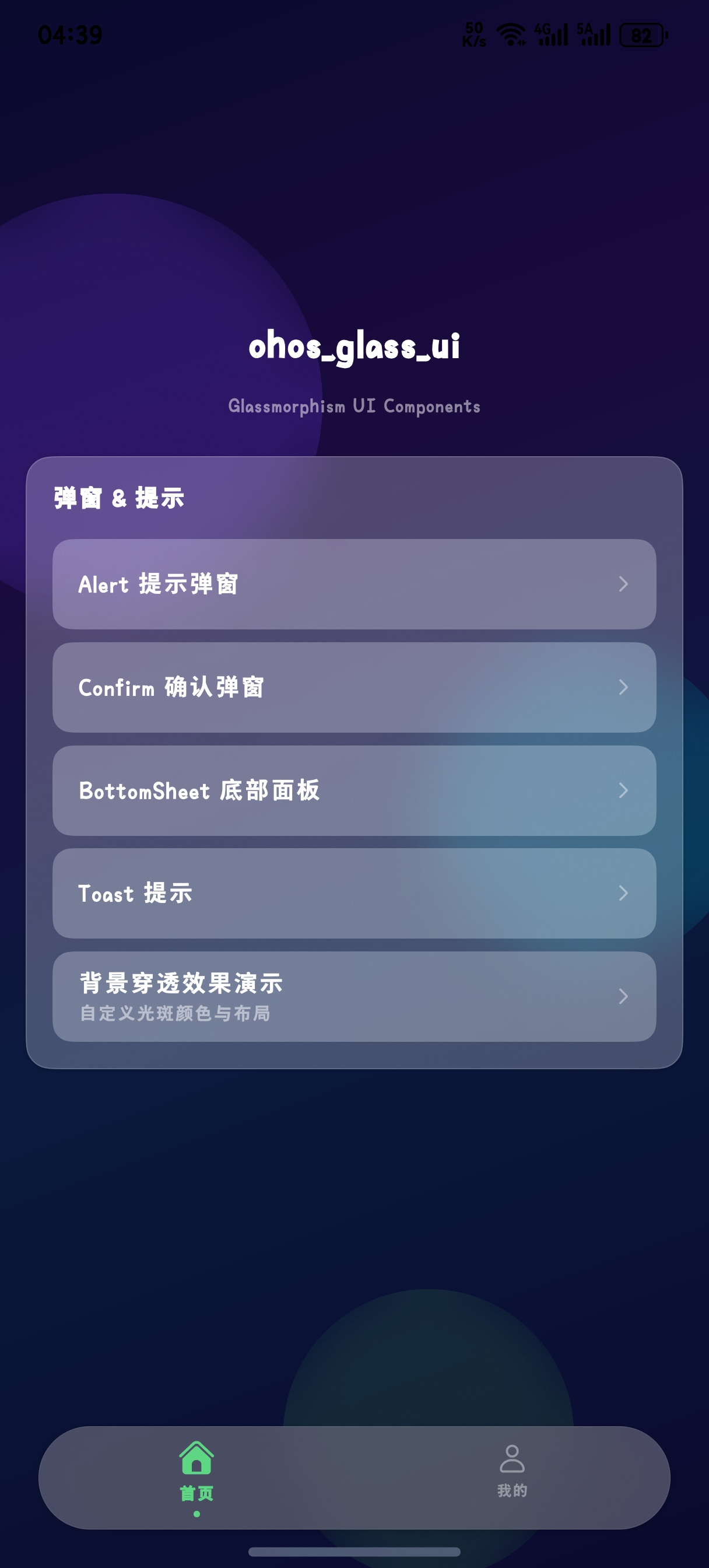
- 真机调试:玻璃拟态效果在模拟器上可能显示异常,建议在支持HarmonyOS 6的真机上测试光影效果
- 多设备适配:测试不同屏幕尺寸(手机/平板)下的悬浮导航位置与MiniBar显示
- 光效强度调节:提供用户设置入口,允许调节沉浸光效强度以适应不同环境光
-
低版本降级:API 22及以下设备自动回退到传统
Tabs+ 自定义玻璃导航栏
八、总结与展望
HarmonyOS 6的悬浮导航与沉浸光感特性为AI智能体应用提供了全新的交互范式。通过本文的实战案例,我们展示了如何:
- 利用
setWindowLayoutFullScreen和expandSafeArea实现真正的全屏沉浸体验 - 使用
backgroundBlurStyle和backdropFilter创建玻璃拟态视觉效果 - 构建智能避让安全区的悬浮导航组件,集成MiniBar扩展能力
- 实现设计阶段驱动的动态沉浸光效,让芯片设计过程"看得见"
- 打造语音交互的沉浸式界面,让工程师感受到"与设计智能体面对面"的体验
这些技术不仅提升了芯片设计工具的交互品质,更为AI智能体时代的工业级应用设计提供了新的思路——让不可见的设计过程变得可见,让复杂的EDA操作变得直觉化。
未来,随着HarmonyOS生态的持续完善,我们期待看到更多基于悬浮导航与沉浸光感的创新应用,让每一次设计交互都成为一场视觉与智能的盛宴。
转载自:https://blog.csdn.net/u014727709/article/details/162357931
欢迎 👍点赞✍评论⭐收藏,欢迎指正
© 版权声明
文章版权归作者所有,未经允许请勿转载。